
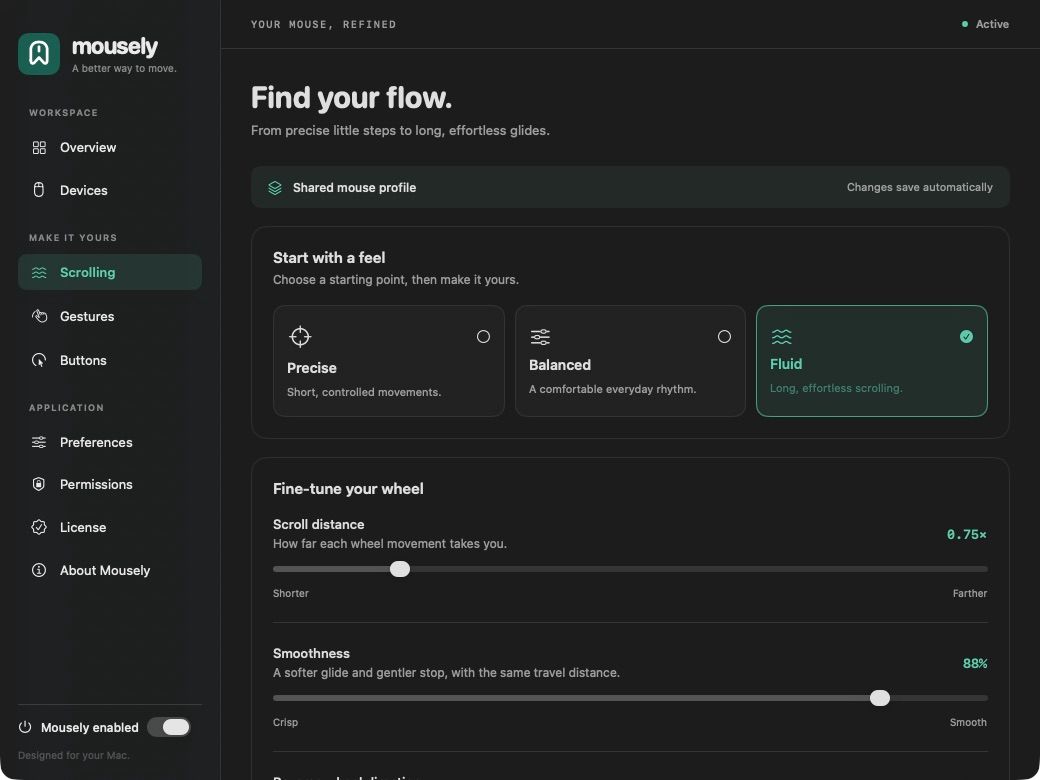
What wheel smoothing changes
A conventional wheel sends small scrolling steps. Mousely turns those steps into continuous motion and slows down as it finishes. The feel is inspired by a trackpad, while using the mouse you already own: it does not add touch sensors or every trackpad gesture.
Start with a profile
In Scrolling, choose Precise, Balanced or Fluid. Try Balanced in Mousely’s scroll test area, then in a page or document you use every day. Test short and long movements: a setting that feels comfortable for reading may feel different on a large canvas.
Smoothness and distance do different things
Smoothness changes how movement is spread over time; distance changes how much content you move through when turning the wheel. If the motion feels good but travels too far, lower the distance. If the distance is right but motion feels abrupt, adjust smoothness. Change one setting at a time so you can compare.
Choose a comfortable scrolling direction
Mousely lets you adjust your mouse’s scrolling direction. Check the result in a document before changing more settings. Smoothing is designed for an external wheel: precise scrolling events from your trackpad keep their native behavior.
Test scrolling inside another scrolling area
Also try lists, panels and text areas inside a window. Move the panel to its start and end and compare how it behaves. Apps may handle scrolling differently; if one feels different, try a more precise profile and reduce the distance.
If the wheel still feels choppy
Check that Mousely is enabled, the correct device is selected, and macOS has enabled Accessibility and Input Monitoring for that copy of the app. Pause other mouse utilities while testing: two programs changing the same events can make diagnosis harder.
Keep a setting for each mouse
In Devices, review detected mice and configure each one. A wheel with firm steps and a lighter wheel may need different distances. The menu bar lets you choose a profile, change smoothness or pause enhancements to compare.